
.avif)
In this article, we'll analyze how to add Polygon to Metamask. Many users are interested in making this connection due to the benefits Polygon offers. In this guide, we'll explain how to do it in detail.

Initially, Polygon functions as an Ethereum layer-2, which is designed to allow us to perform transactions at lower costs compared to other tools.
This has led to several users becoming interested in this option, including those developing NFT projects.
Metamask is a browser extension, though it's more recognized for its wide range of functions as a crypto wallet. Another of its features is that it's linked to the Ethereum mainnet.
Of course, it's possible to add a network like Polygon to Metamask but this requires following a series of steps because it doesn't come in a standardized format. Mainly, you need to provide some basic blockchain data. To know what data to provide, you need to have sufficient knowledge of the topic. If you don't, I recommend reading these articles: blockchain oracle and degrees of blockchain decentralization.
Ready to learn all the details on how to add Polygon to Metamask? Here are some instructions.What is Metamask?

If you're looking for a basic definition, we can say that it is a cryptocurrency wallet,So, it's a platform that connects users to the features of decentralized applications.
But in addition to acting as a wallet that facilitates transactions with Ethereum (one of the world's most popular altcoins), it is also defined as a web plugin that allows access to the DeFi ecosystem. Read the article DeFi exchange
After correctly installing and configuring Metadask, users have access to a wide variety of functions. Primarily, it facilitates transactions with Ethereum for various purposes.
For example, some use this method to invest in gaming items, even acquiring Non-Fungible Tokens which they can then trade on so-called "decentralized exchanges."
On the other hand, Metadask also facilitates access to other applications, mainly those associated with the decentralized application ecosystem. Some clear examples of this are Compound and PoolTogether.
If we look at the basic definition of Metamask, we understand that it is a wallet for sustainable cryptocurrencies. However, by delving a bit deeper into its functions, it's easy to perceive that is very well adapted to modernity and the latest resources in this field.
However, what advantages does using this tool truly offer? In the following list, you can explore some substantial benefits.
Even if you're just starting out in the world of investing in stablecoins like cryptocurrencies, you should know that this is an easy-to-use Wallet. It's also a practical tool that will connect you with multiple decentralized applications.
Another benefit of installing Metamask is that it doesn't require complicated setup to enable the multi-account function. This allows interaction with other digital wallets, including access to quite useful features for investing.
Furthermore, Metamask is very well-equipped to provide a secure and transparent space. In fact, it has received quite positive reviews from its frequent users. Securely stores private passwords.
Contrary to what some might think, figuring out how to add Polygon to Metamask isn't that complicated. However, it's crucial to pay attention to the steps, especially since very specific actions need to be followed.
1.Open your Wallet
For the first method to add Polygon to Metamask, you need to open your Wallet. Once there, you'll see a "settings" option in the top right section (this will depend on the language your tool is set to).
2.Enter the Network Name
The next step is to locate the "Networks" function in Metamask, which will be within the "settings" options. Once there, click "Add Network".
Once you've done this, you'll see a window asking for several pieces of information. You should add the following details, which you'll find in the table:
Network Name:
Polygon Mainnet
New RPC URL:
https://polygon-rpc.com/
Chain ID:
137
Currency Symbol:
MATIC
Block Explorer URL:
https://polygonscan.com/
3.Save the information
The next step is to save all the data you've entered. It's important to ensure that each piece of information is correct, as otherwise, you won't be able to add Polygon to Metamask properly.
To finish, you just need to click "save". But how can we verify that Polygon is in Metamask? You should open the Networks option; once there, it should appear as one of the available Wallet options.
Yes! The truth is, learning how to add Polygon to Metamask has more than one answer, as there are several procedures. The ideal approach is to choose the one you find simplest to avoid complications during the process.
Here are some other methods, also explained step-by-step:
Chainlist.org is a platform that helps add Polygon to wallets like Metamask. To do this, you just need to follow these steps.
Go to Chainlist.org and connect your Wallet.
In the search bar, you need to enter the network you're looking for, "Polygon/Matic". Now, click on the "Add to Metamask" option.
You'll notice that your Wallet opens; there, you should verify the network information.
Finally, click "approve". Done!
So far, we've only explained how to add Polygon to Metamask, but it doesn't end there. Having this extension is useless if we don't implement the necessary configuration.
To take advantage of this network's benefits and functions, you need to deposit funds to Polygon. Once you've sent Polygon/Matic to your Wallet, you must prepare it to then make your transactions.
Some consider that a good way to achieve this is through Binance, one of the most well-known names in cryptocurrency. It allows you to buy Polygon/Matic, once you've processed it, you must withdraw it using Polygon linked to Metamask.
But, How much should you deposit? Of course, this will depend on your investment goals and your profile within this area. However, this network has extremely competitive fees; with an average of $10, it's possible to make several transactions, which is often the minimum deposit.
Another important recommendation is to use WETH; you can also acquire it using Binance's features. It's a great alternative if you want to invest in NFTs from the Polygon network.
As you can see, there are several options available for making deposits on Polygon; you can choose the most practical one based on your preference.
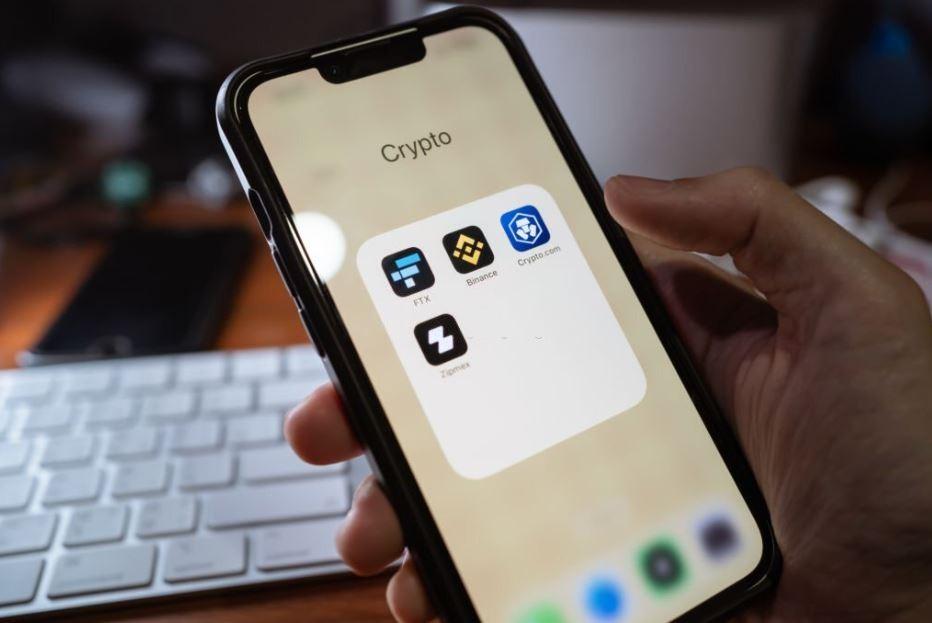
We're going to explain more than just how to add Polygon to Metamask. When you do this, there are other functions that need to be performed manually, such as adding cryptocurrency Tokens.
To make Polygon Tokens appear in your wallet, you need to go through a Token import process. The first step is to go to PolygonScan, where you can find the contract and token information.
Once you have verified the information, you must return to Metamask. Once there, click on the "Import Tokens" option. A bar will appear; there you need to paste the contract address of your chosen Token.
Finally, you just need to click on "Import Token," after which you will see it appear in your Wallet.
As we've indicated, it's a simple, convenient, and practical process, provided you follow the instructions carefully. First, you need to open your Wallet and locate the settings section, which will allow you to access Networks.
Once there you need to enter the information we've shared with you, verify the information, and save it so it updates in Metamask. Leave your questions in the comments, and we'll gladly help you because Domoblock.io is not just a platform specializing in real estate tokenization and real estate crowdfunding, but its true interest lies in providing quality, useful information to users.


.png)

27 Progreso Street
Funded
Target
€1,575,297.50


.png)
.png)
.png)
.png)



.avif)
.avif)
.avif)


